HOW TO USE THE TIMER AND REST TIMERUpdated 2 months ago
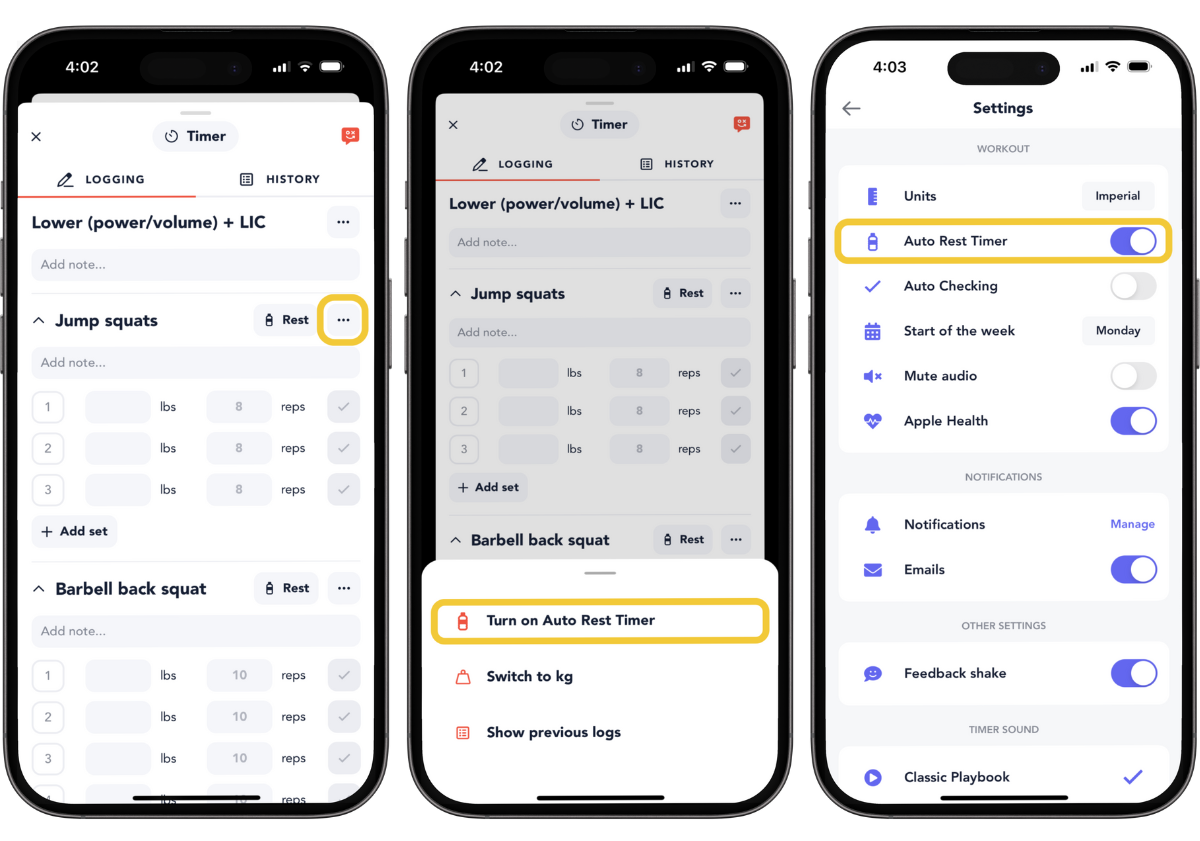
With our custom timer feature, you can set any time you want, pause, and go forward or backward in 10-second increments. To make the most out of this feature we have covered everything below.
1. Start a workout and tap on the timer at the top in the center of the screen.
2. Set your custom timer duration.
3. Start timer and then you can stop, reverse, or move forward based on your workout needs.
Timer
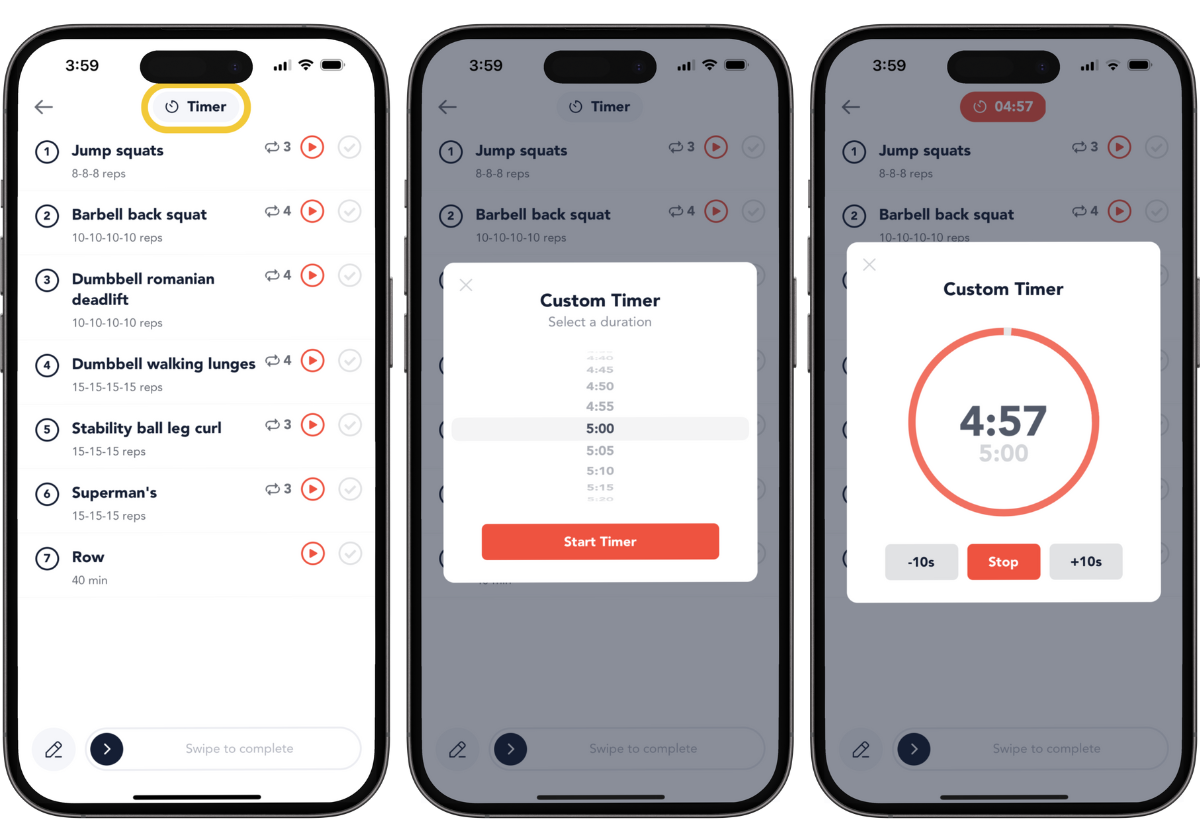
You can access the exercise and rest timer while logging. Click on the rest or timer icon in your log and it will automatically set your timer at the top to that time.
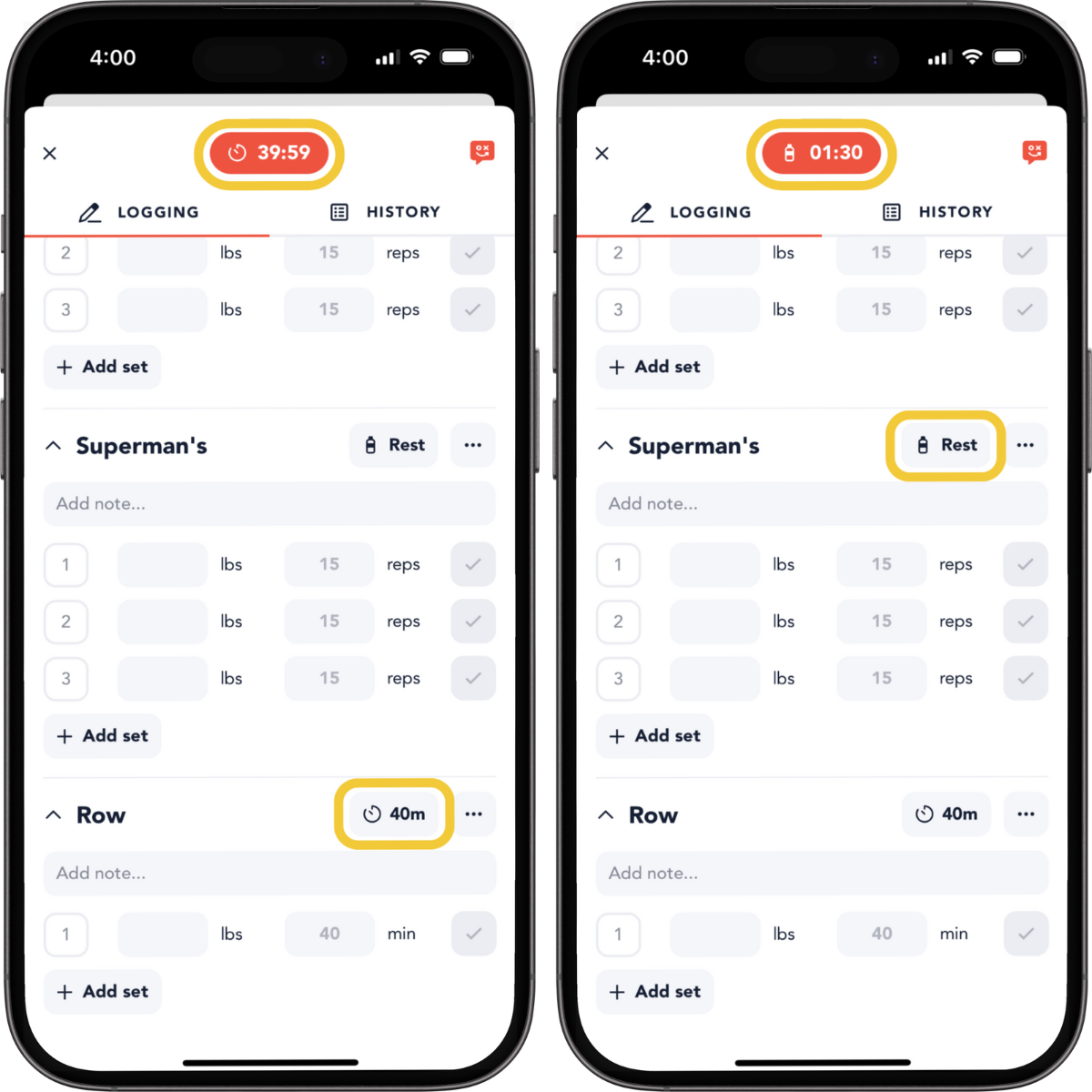
You can also start your rest timer in the workout overview and in an exercise video (shown below).
Auto Rest Timer
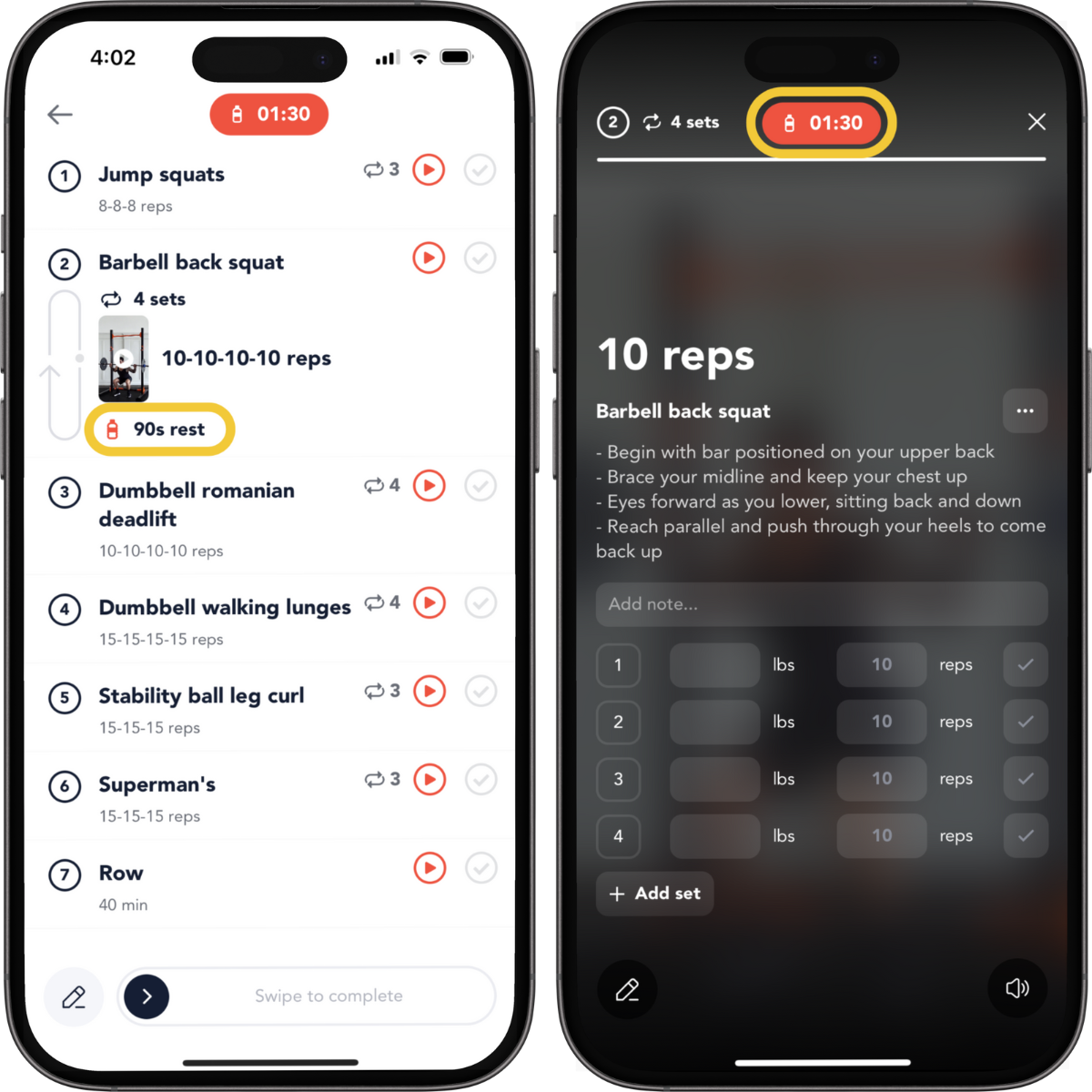
You can autostart the rest timer in a single exercise when you check a set, or when you complete all the exercises within a circuit in a round. To set this, tap on 'Turn on Auto Rest Timer' in the menu or do it on the Settings page.
Note: This option will not be visible in the logger menu if your trainer has not specified a rest time.