LOGGING WORKOUTS AND HOW TO FIND YOUR WORKOUT LOGUpdated 2 months ago
You can track your workouts by logging your weights, time, and reps, as well as any notes when working out.
Creating a Log
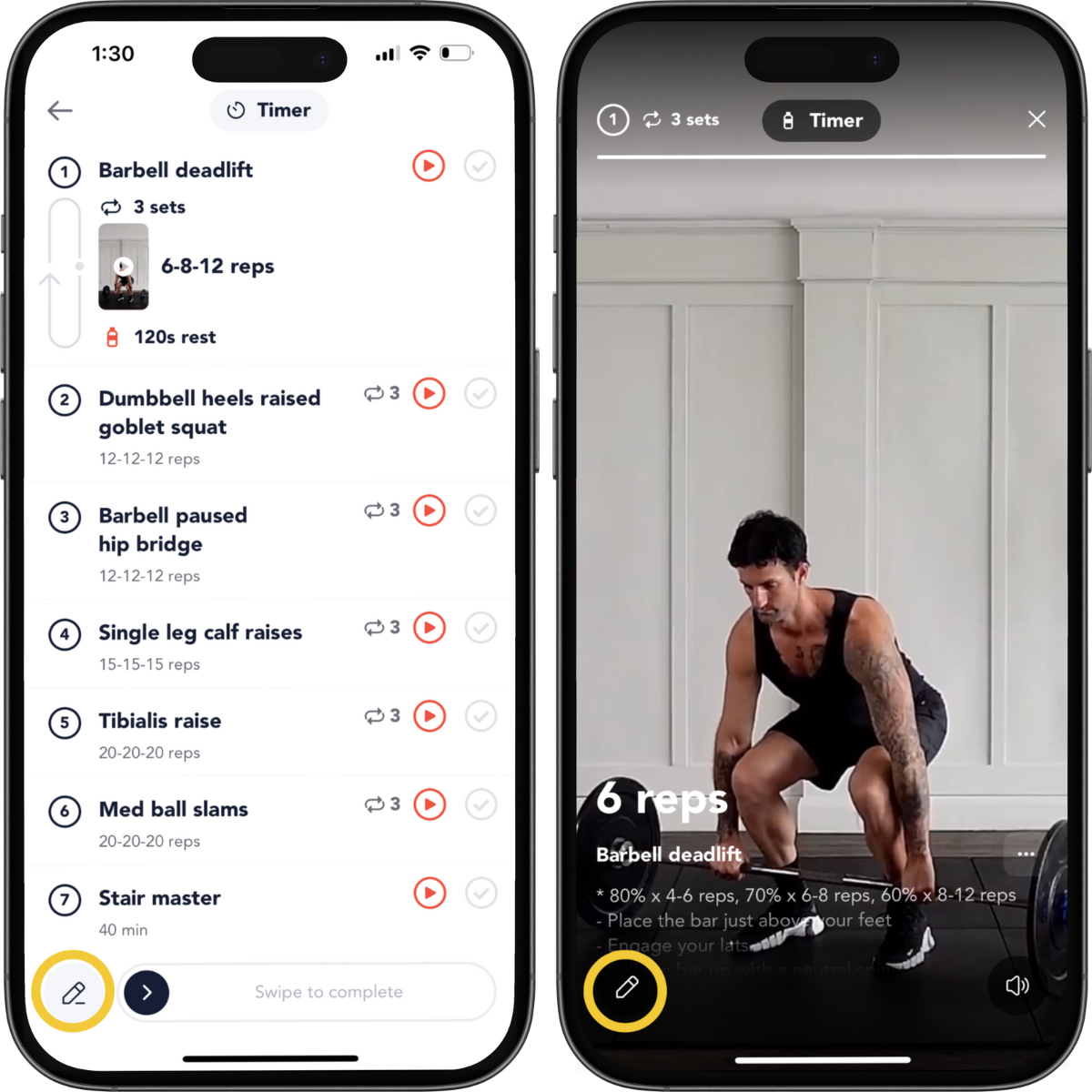
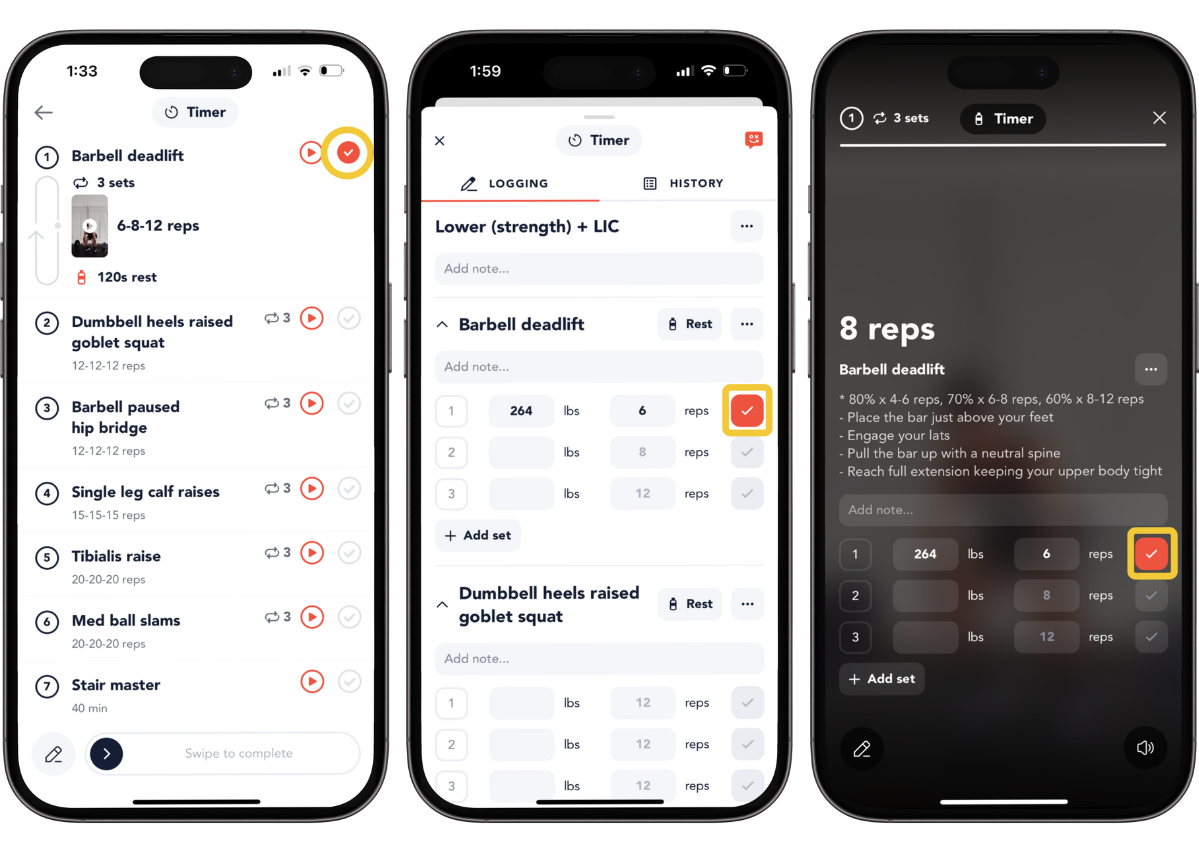
You can log your workouts from the workout overview or the exercise video player by tapping the Logging icon — it looks like a pencil.
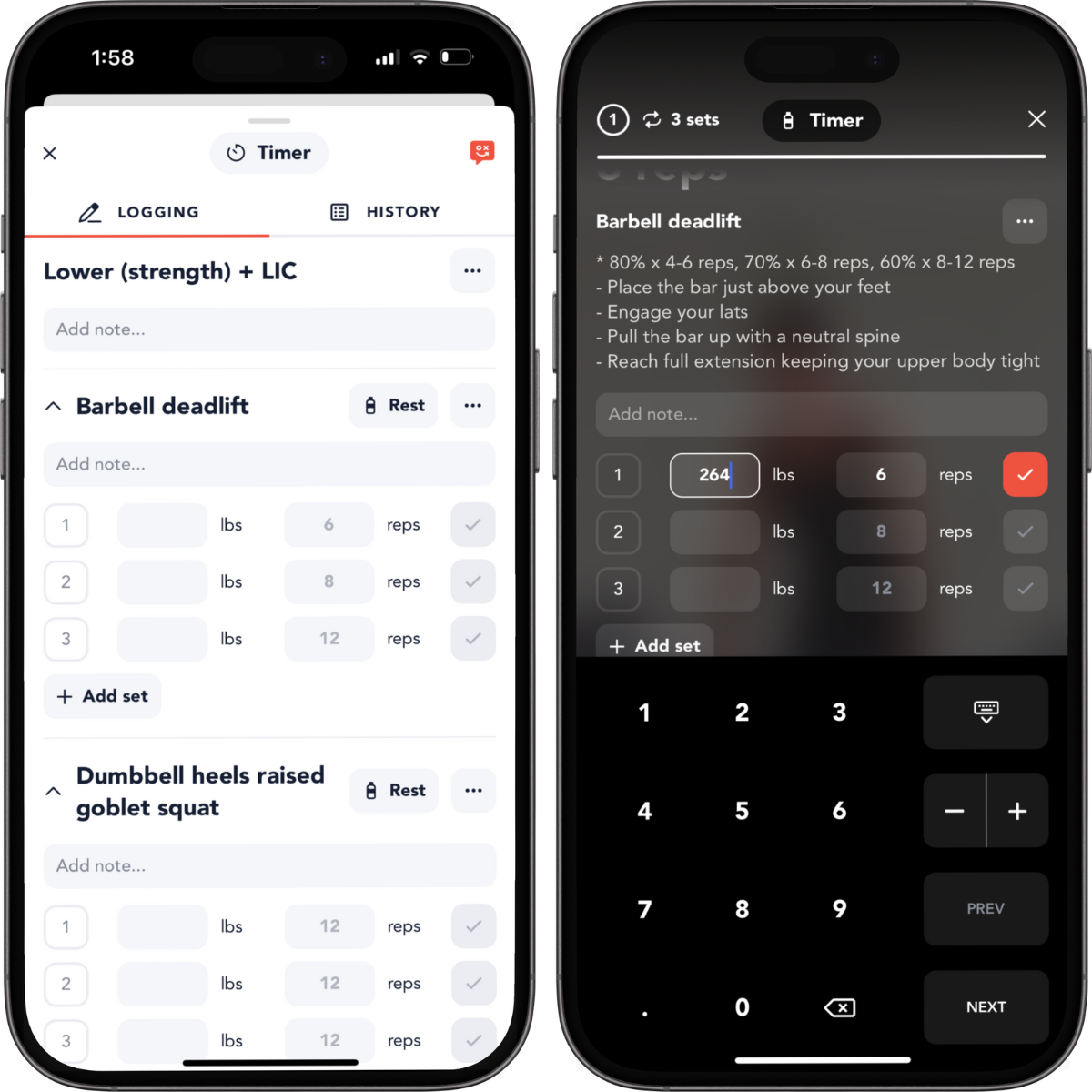
Input your weights and reps and also add notes.
Adding & Deleting Sets
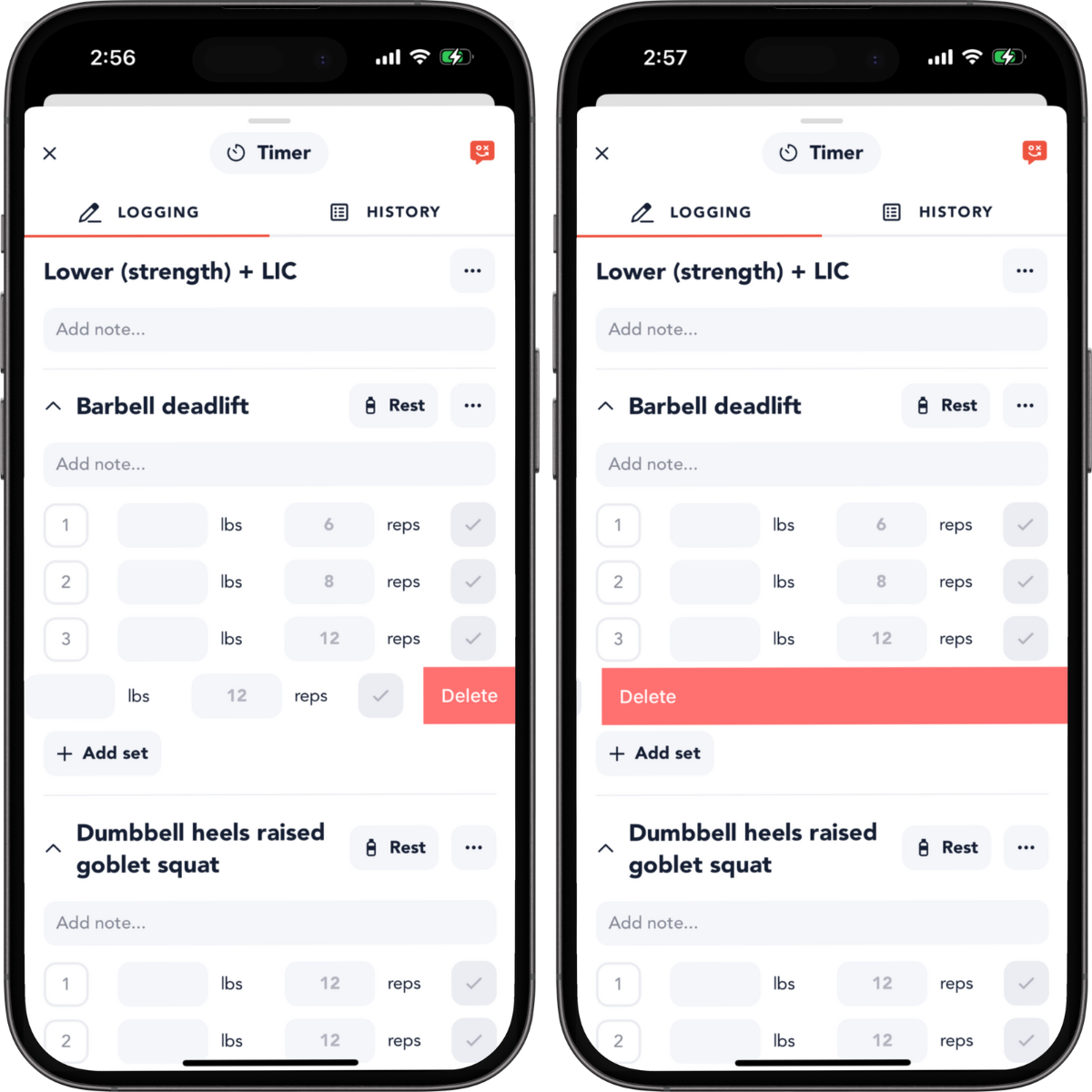
To add a new row of a set, tap Add Set. Your inputs from the line above will be copied in the new row as placeholders. To delete a set, simply swipe left on a set.
Saving a log
To save your progress in drafts, you must click on the checkmarks from the workout overview or the logging screen.
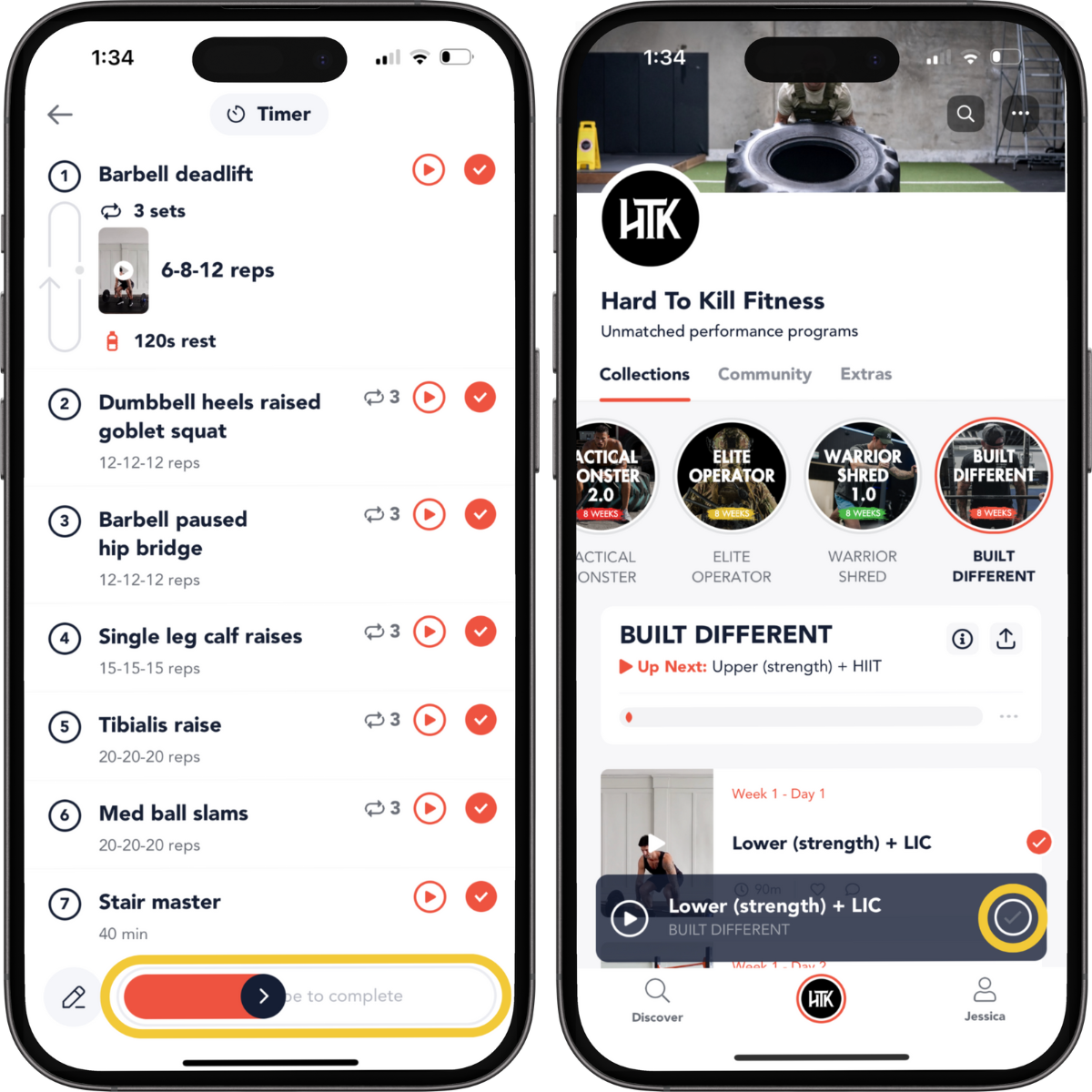
However, to save your log to your Log History and Calendar, you MUST swipe or mark the workout as complete. If you don't do this your data will be lost.
View Log History
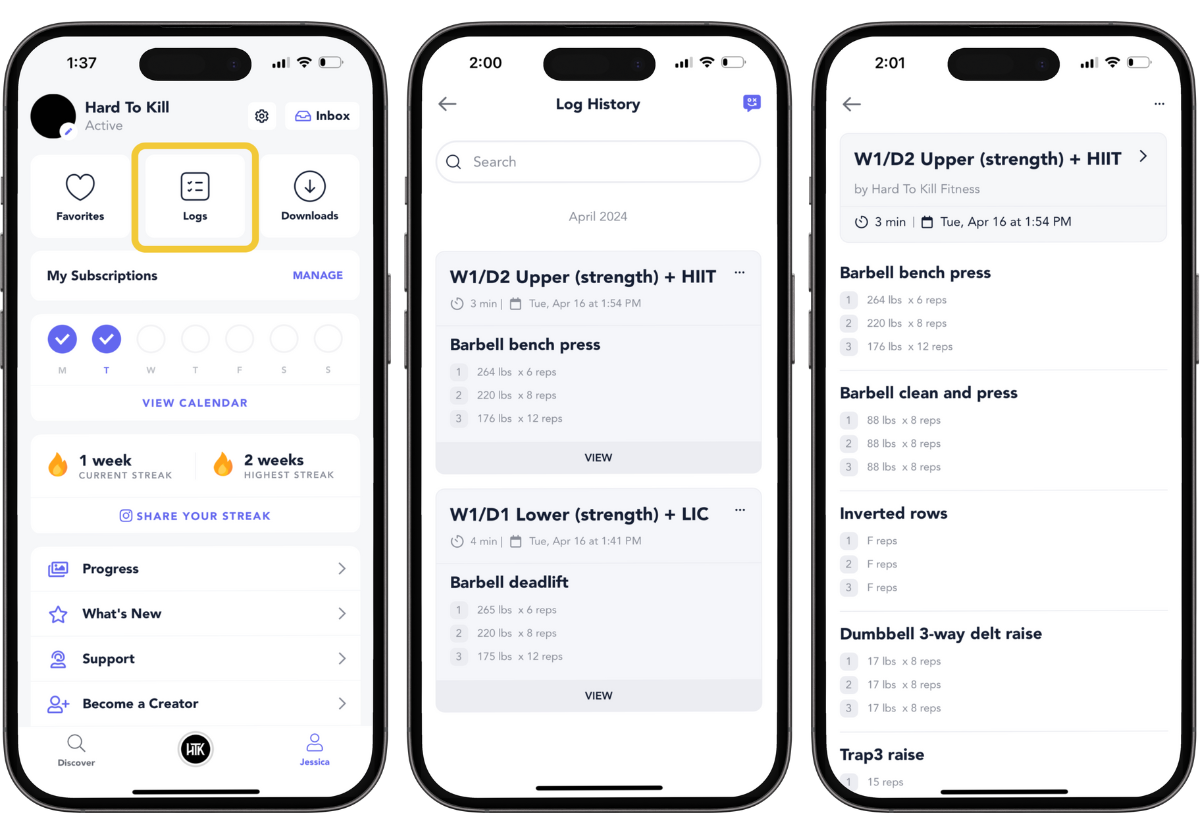
To view your logs, click on the Logs button in your Profile tab (shown below). You will find your logs in chronological order with the most recent log at the top. Tap the View button to view the full note.
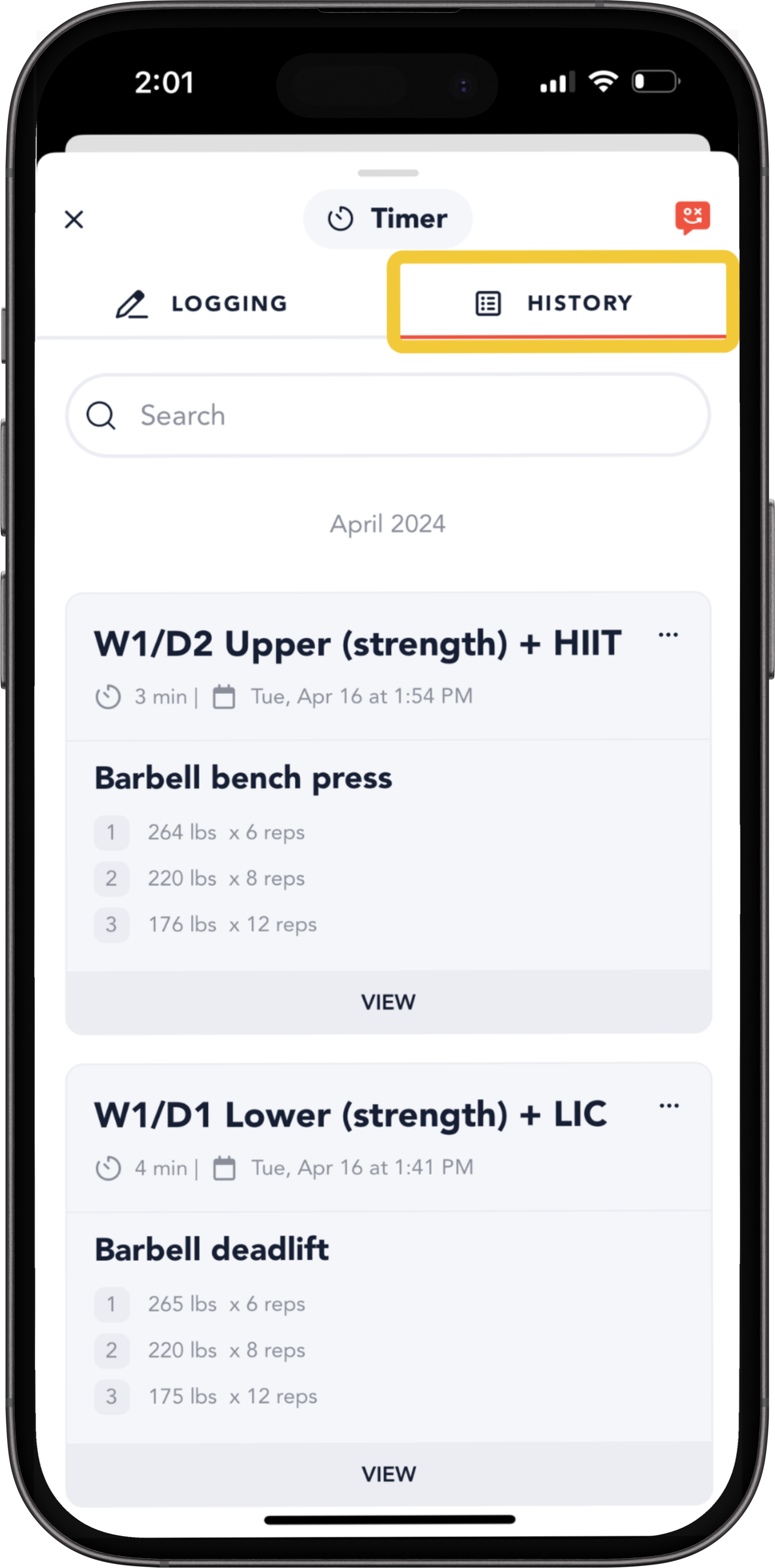
You can also view your History by opening the History tab. Access this tab within the logging screen as shown below.
Find Previous Lifts While In A Workout
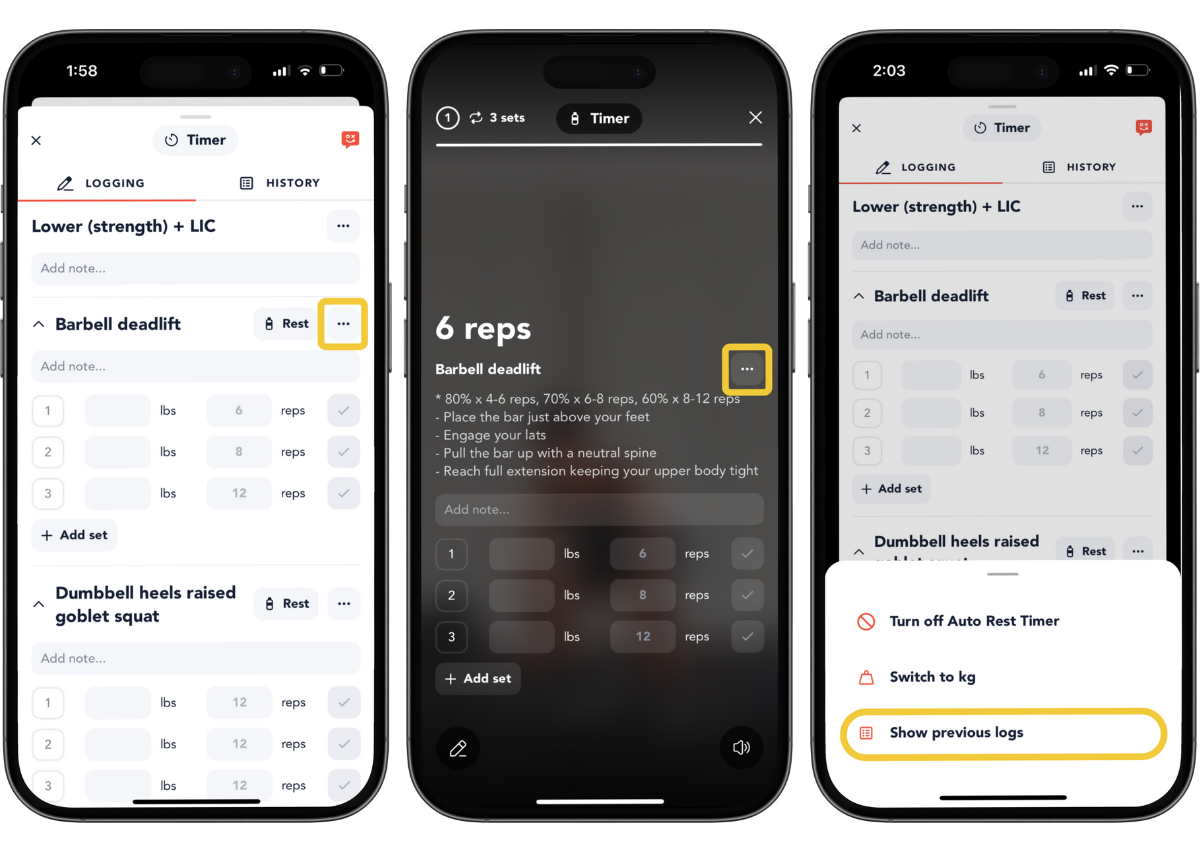
If you are in a workout and want to look up past logs to see what weight was lifted for that specific exercise, then you can tap the menu next to the exercise name. Select 'show previous logs' and you will be able to search for completed workout logs that contain that exercise.
Note: Tap view to see the full log information.
Editing
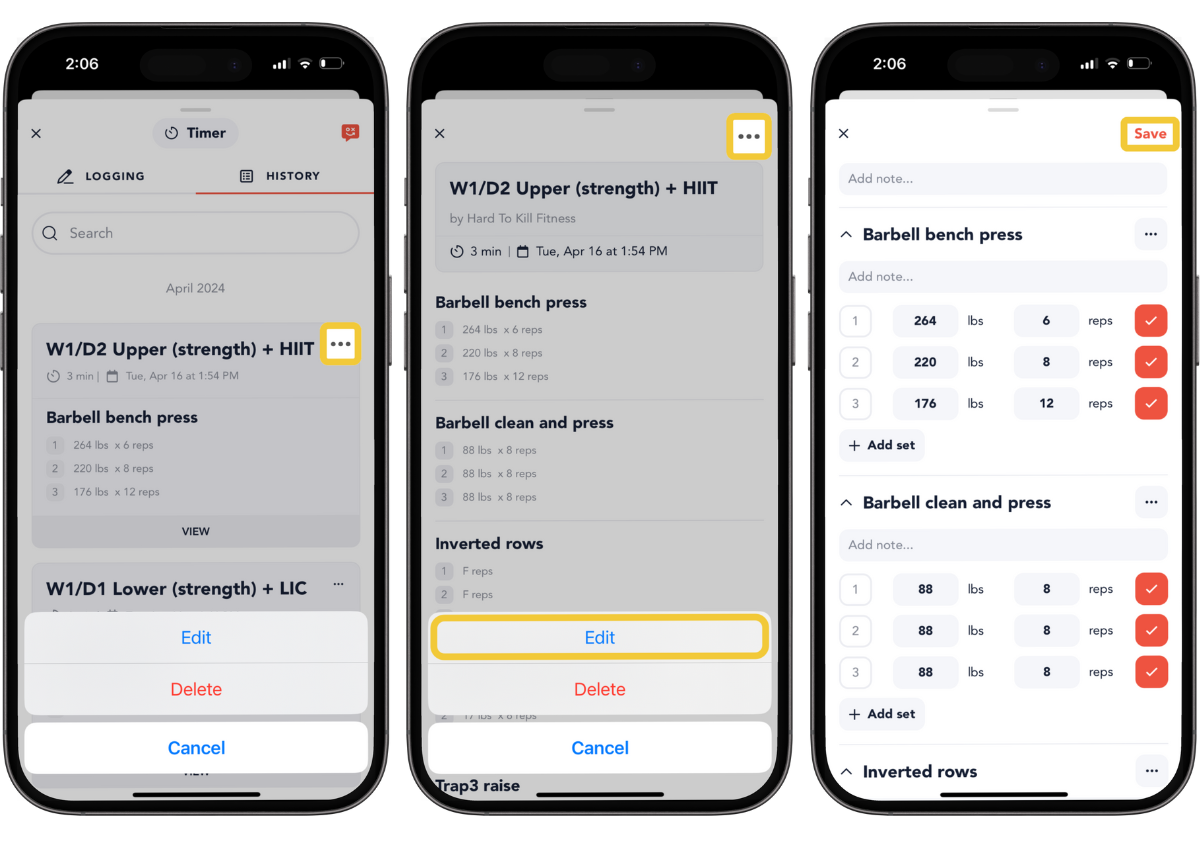
To edit your saved log, navigate to your Log History and tap the menu and select Edit. Tap Save to save your changes. The date and time on your log will not change and will be the same as the time you completed your workout.